
You know the drill. Session went well, the director was happy, you hit stop and there it is: one WAV, 57 minutes long, somewhere around 800 takes inside it. Then the second job begins. Zoom in, find the silence, split, zoom in, find the silence, split. Drag the keepers to another track. Try to remember whether that was line 14 or line 15. Three hours later you're arranging clips by ear and the evening is gone.
Sounds familiar?
Here's the direct answer. You split a long session by detecting silence: any stretch where the level stays under a threshold for longer than a minimum time is a gap between takes, and you cut there, keeping a little room tone on each side. You get the pieces into FL Studio in order by naming the files so they sort in the order you want and dropping them onto the playlist in one go. And you get script order instead of recording order by knowing which line each take belongs to, which means pasting your script and optionally letting a transcription pass match the takes to it.
You can do all of that by hand. Or you can use Takekeeper, a free tool I built that does the mechanical part in your desktop browser. No account, no sign-up, and the recording never leaves your machine: it's read from disk inside the browser and the exports are written back to disk. On the reference session (57 minutes, 848 takes, 1.2 GB) detection took about six seconds and the export folder was built in 0.7 seconds.
But I want to teach the idea first, because once you understand it you'll make better decisions with any tool, including a DAW.
What a take boundary actually is
When you look at a session waveform, the takes are obvious to your eye: blobs of speech with flat bits between them. Silence detection is just a formal version of what your eye does, with two numbers.
The first number is a level threshold. Anything under it counts as "quiet". In a treated booth with a decent preamp, -40 dBFS is a sensible default: room tone sits well below it, even a soft consonant sits above it.
The second number is a minimum duration. This is the one people forget, and it's the one that matters most. If you cut at every moment the level dips under the threshold, you'll slice a take in half at every breath, every comma, every dramatic pause. So the rule is: the level has to stay under the threshold for at least this long before the quiet stretch counts as a gap. A default of 1.0 second works because a breath inside a sentence is 200 to 500 milliseconds, while the pause between two reads (you think, you reset, you go again) is almost always longer than a second.
Now the third detail, the one that separates a clean take from a clipped one: margin. When the detector finds where speech stops and where it starts again, the cut shouldn't land exactly on those points. You want a bit of room tone on both sides, say 0.25 seconds, so the take starts with a breath of air before the first syllable and doesn't chop the tail of the last one. That margin is also what lets the clips sit next to each other in the DAW without sounding gated.
Quick tip: if your booth is noisier than average, raise the threshold (say -35 dBFS) before you touch the minimum silence. If you pause a lot mid-line and takes are getting split, raise the minimum silence to 1.5 seconds. Change one thing at a time and check a stretch you know well.
One more thing about the cut itself. There are two ways to produce the pieces: decode the whole file, process it, and encode each piece again, or copy the bytes between two positions exactly as they are. The second is what you want. A WAV file is uncompressed PCM, so a take is just "samples 5,432,100 to 5,501,000" of the original. A byte-exact slice keeps your bit depth and sample rate untouched, is instant, and can't introduce anything that wasn't in the recording. A tiny fade of a few milliseconds at each cut avoids clicks and that's the only processing that should happen.
Why file names decide the order
Here's something that took me embarrassingly long to internalise: a DAW doesn't know anything about your takes. When you select 200 files in a folder and drop them onto a track, the order they land in is the order the file browser handed them over, and that's the alphabetical order of the names. So if your files are called take1.wav, take2.wav ... take10.wav, they land as 1, 10, 11, 12, 2, 3. If they're called take001.wav, take002.wav and so on, they land in order.
Zero-padded numbers in the file name are the whole trick. Everything else is built on that.
But here's the trick that makes the folder drop actually usable: tiny silent gap files. If you drop 200 clips onto one track they land butt-to-butt, which is horrible to audition. What you want is a second of air after each take. So you write, between each pair of takes, a very small WAV file that contains nothing but silence, and you name it so it sorts right after the take it follows. Now when you select everything and drop it, the silences land in place and the whole session arrives on one track, spaced, ready to listen to. Make the gap between two takes of the same line one second and the gap where the next take is a different line two seconds, and you can hear the line boundaries without looking.
Recording order versus script order
Now, let's talk about order, because "in order" means two different things.
Recording order is the order things happened. Take 37 comes after take 36 because you said it later. If you recorded the script top to bottom with no detours, recording order is script order and you're done.
Except that's not how sessions go. You do line 20, the director asks for line 18 again, you redo 18 and 19, then carry on with 21. Now the pieces of line 18 are scattered: some near the start, some in the middle. Script order means gathering every take of line 18 together, in the position line 18 has in the script, regardless of when you recorded it. To do that you need to know, for each take, which line it belongs to. That's the piece of information silence detection can't give you, because silence detection only knows where the quiet is.
I get that this sounds like a big ask. Two honest points. First, without a script, recording order is completely fine: you still get numbered, spaced clips on one track in a few seconds, and you sort by ear as you always did. Second, the moment you know which line each take is, the export can number by line, and the DAW drop arrives in script order for free, because the names sort that way.
Now, let's talk about Takekeeper
Everything above is what Takekeeper does, in a browser tab. It started life as a Python command-line script that cut a session at the silences into numbered files for a voice actor to arrange in FL Studio, and it grew from there. The interface is in English and Spanish, and the script handling and transcription are tuned for both languages.
The landing page is one headline and a drop target. In the screenshot below you can also see a recording that's already been touched, mart_full.wav, listed with resume and discard: your lanes, cuts and position are saved in the browser as you work, so closing the tab costs you nothing.
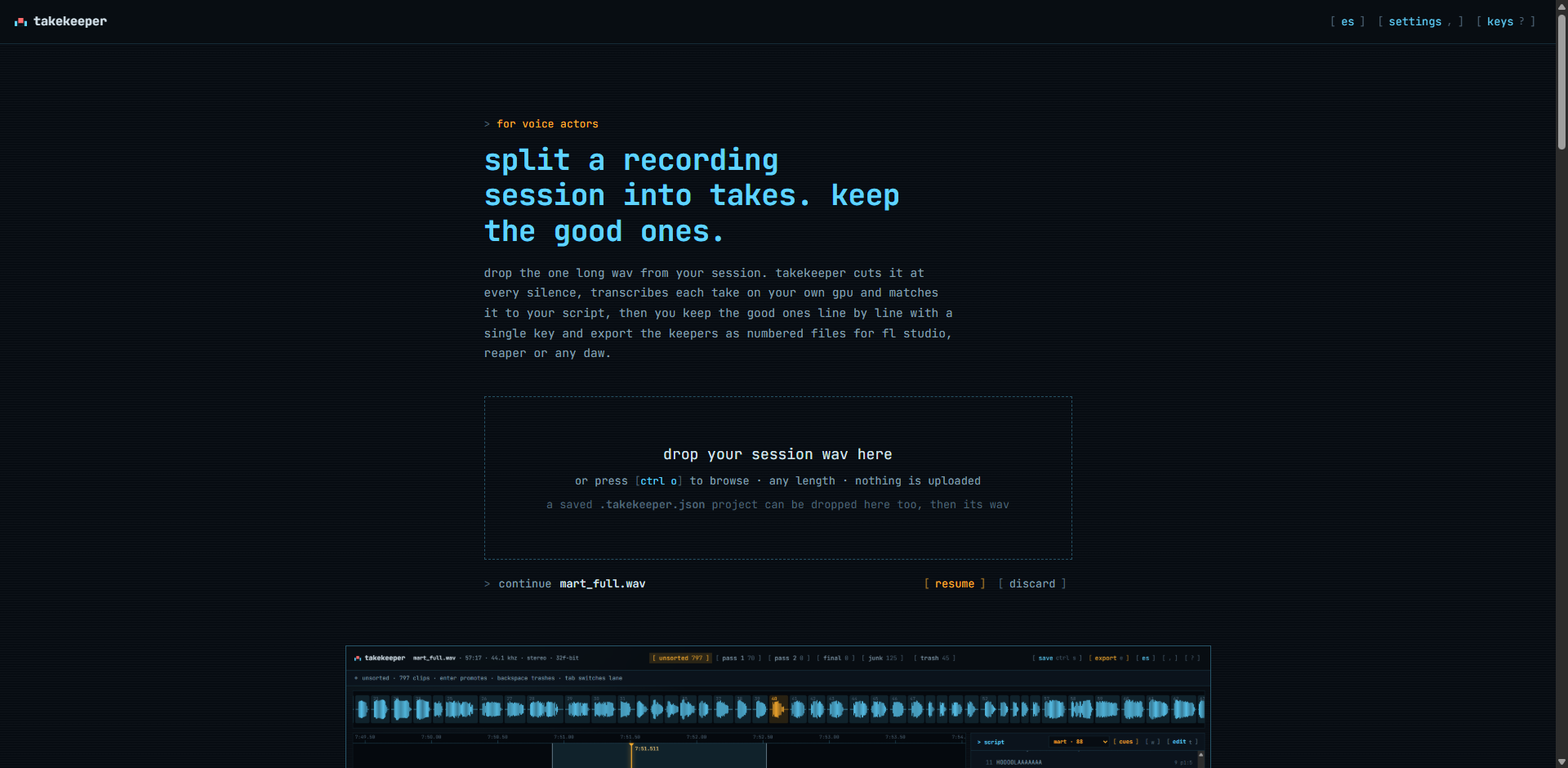
Takekeeper landing page with the drop target for a session WAV and a previously opened recording listed with resume and discard options
Drop the WAV. It isn't decoded whole: the file is streamed and the level of every 20 ms frame is measured. Wherever the level stays under the threshold (default -40 dBFS) for longer than the minimum silence (default 1.0 s), it cuts, keeping 0.25 s of room tone on both sides. Breaths and short pauses inside a take are left alone. All three numbers live in settings if your booth or your pacing needs something else.
Because each take is stored as a start and end position in the original file rather than a copy, an hour-long 1.2 GB session loads in about six seconds and uses about 35 MB of memory. WAV files can be any length; MP3, FLAC, OGG and M4A work up to roughly 25 minutes.
This is what you see right after detection, before any sorting or script: 848 clips in Unsorted, Junk and Trash empty, and the script panel on the right still saying there's no script yet. Take #37 is selected at 2:05.65, 1.56 seconds long, with the IN and OUT markers showing where the cut landed and 1.5 seconds of context on each side so you can judge it. This is what silence detection alone gives you, and it's already usable.
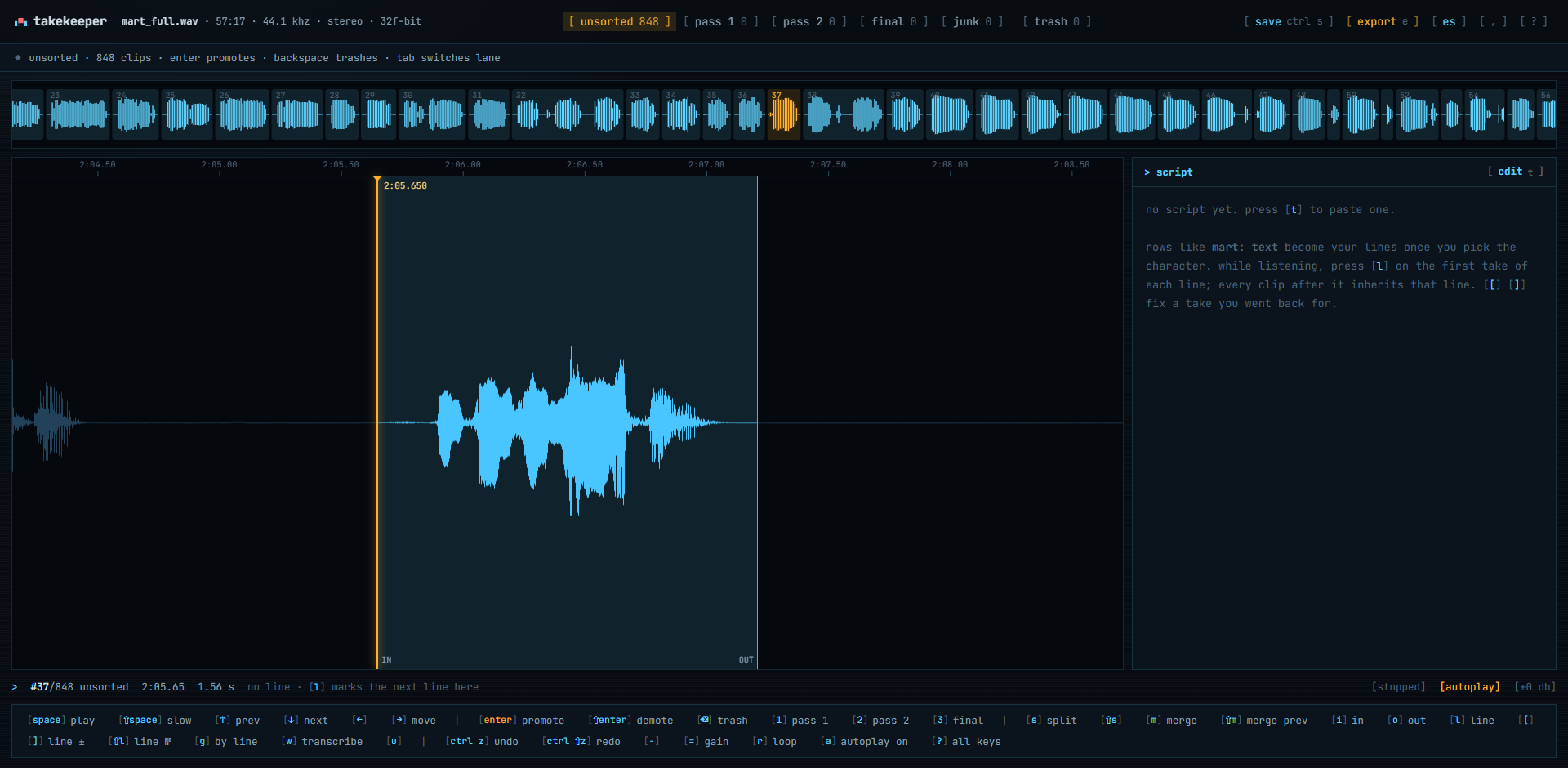
Takekeeper right after silence detection: 848 takes in the Unsorted lane, take 37 selected on the waveform with IN and OUT markers, script panel empty
From here you can sort straight away. Takes autoplay one after another; Enter promotes the current take to the next lane (Pass 1, Pass 2, Final), Backspace trashes it, doing nothing leaves it where it is. Every key is also a toolbar button, so mouse users can click lanes, takes and the waveform. If a cut is wrong, I and O move the start and end, S splits, M merges with the next take and restores the audio between, and undo is unlimited. If you want to sort without transcription, L marks "the script continues here" as you listen, and every clip after it inherits that line.
Getting script order: the script and the optional transcription
Paste the whole script as plain text with T. Rows like Mart: text are read as spoken lines; everything else is stage direction. The app lists the characters it found with their line counts, you pick yours, and "line 14" means your 14th line. A plain list of lines with no names works too.
Then, optionally, press W. That runs OpenAI's Whisper model inside the page, on your own GPU, and transcribes every take on its own. The model downloads once (whisper-small, about 410 MB, the safe choice for Spanish; whisper-base, about 140 MB, roughly twice as fast and a little rougher). Audio never leaves the machine. Each take is then matched to the script line it belongs to with a text similarity that tolerates transcription errors and prefers staying on the same line or moving to the next, so a session with detours matches correctly. On the reference session all 88 lines received their takes, with 15 backward moves and 4 large jumps in the recording. Doubtful matches are flagged and U walks through them.
Two honest notes. Budget about ten minutes of processing per hour of audio on a mid-range PC, longer on weaker machines (on an NVIDIA GPU the 57-minute reference took about twelve minutes with the small model), and let it run rather than doing other work alongside. And after matching, takes that are empty or wordless (a breath, a slate, a cough) move to the Junk lane automatically: 174 of them on the reference session. Junk is a guess, not Trash. Short real lines sometimes land there, so give that lane a quick look. It never takes a line's last remaining take.
Transcription also improves the cuts: a take with several reads in it is re-cut into single reads (93 such takes became 238 on the reference session), a false start followed by the real read is separated, and a line a pause split in two is merged back. The other posts in this series go into the script panel and the transcription pass in detail; this one is about getting clips into FL Studio.
The export, and the FL Studio drop
Press E. The dialog below is the export of the Pass 1 lane on the reference session: 70 clips, 1:52.8 of audio, 69 gaps adding up to 1:24.0 of silence. You choose the order (by line for script order, by time for recording order), the lane to export, and the format: a folder written straight to disk, a zip, or one file, a single merged WAV with a fixed gap between takes. Below that, the silent gaps between takes toggle and the two fields that set them: 1 second after every take, 2 seconds where the next take is a different line. Takes without a line go last.
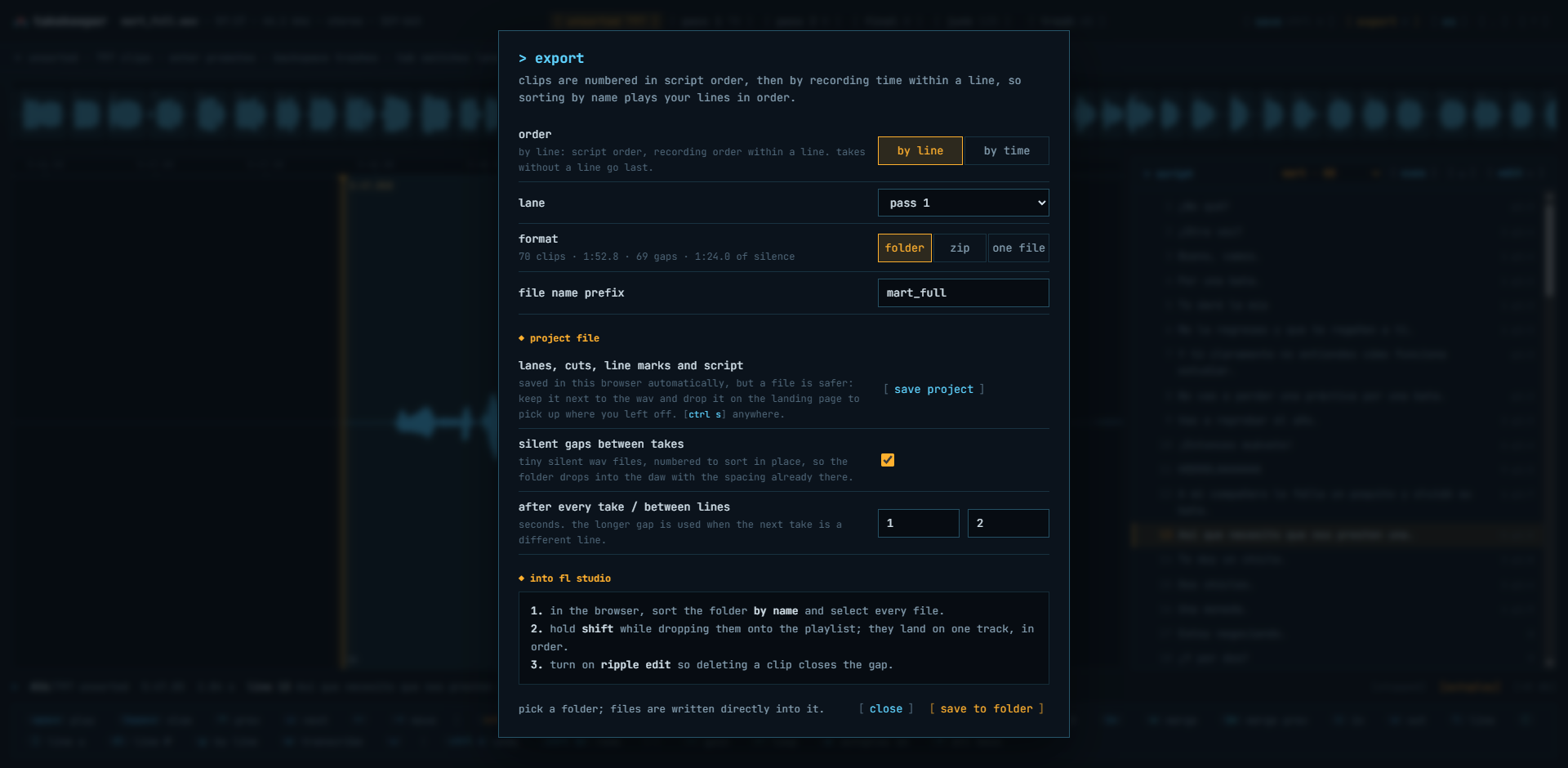
Takekeeper export dialog for the Pass 1 lane with 70 clips: order by line, folder format, silent gaps enabled with 1 second after every take and 2 seconds between lines, and FL Studio drop instructions
Files come out as byte-exact slices in the recording's own bit depth and sample rate, with a 5 ms fade at each cut, and they're named to sort: mart_001a_line014.wav carries the sequence number, the take letter and the line number. The gap files are named to fall in place between them. On the reference session, 848 files were built in 0.7 seconds.
Then the drop, exactly as the dialog itself lists it:
- In your file browser, sort the exported folder by name and select every file.
- Hold Shift while dropping them onto the FL Studio playlist; they land on one track, in order, with the gaps already there.
- Turn on Ripple edit in FL Studio so deleting a clip closes the gap behind it.
That's it. Sort by ear on that one track, delete what you don't want, and the track tightens up as you go. If you did the transcription pass, the clips are already grouped by line in script order. If you didn't, they're in recording order, which is what you'd have had anyway, just cut and spaced for you.
Browser note, stated plainly: Chrome or Edge on desktop get the full set (folder export straight to disk, WebGPU transcription, one-click resume). Firefox sorts fine but downloads a zip instead and transcribes on the CPU, which is slow. Phones and tablets are not the target. Ctrl+S writes a small .takekeeper.json next to the recording so you can pick the work up on another machine.
Before and after
The DAW way, roughly what I used to do:
- Import the hour-long WAV onto a track.
- Zoom in, find each silence, split. Repeat a few hundred times.
- Drag the clips apart so you can hear where each one ends.
- Listen, drag keepers to a second track, then a third for the finalists.
- Re-listen to work out which line each clip is, and write it down somewhere.
- Arrange the finalists in script order by hand, gaps included.
- Export or consolidate, and hope the names make sense next week.
The Takekeeper way:
- Open takekeeper.com in Chrome or Edge, drop the WAV. About six seconds.
- Optional: paste the script (T), pick your character, run transcription (W). About ten minutes per hour of audio; glance at Junk afterwards.
- Sit in Unsorted, let takes autoplay, Enter to promote, Backspace to trash. Repeat per lane until Final holds one take per line.
- Export (E) the lane you want as a folder with gap files, ordered by line.
- Sort the folder by name, select all, Shift-drop onto the FL Studio playlist, turn on Ripple edit.
The creative work, choosing which read is the one, is the same in both. What changed is that the mechanical part went from most of an evening to a few seconds plus whatever you spend actually listening. That's the whole point: Takekeeper doesn't pick takes for you, it removes the reasons you were dreading picking them.
Transcription judges what a take is, never how good it is. That part is still yours.- Pablo Domínguez
Questions people also ask
Do I need the script to use Takekeeper?
No. Silence detection alone cuts the session into takes in a few seconds and the export comes out in recording order, numbered and spaced. The script and the optional transcription are what turn that into script order.
Will silence detection cut my takes in half at breaths?
Not with a sensible minimum silence. Breaths and mid-sentence pauses are a few hundred milliseconds; the default of 1.0 second means only quiet stretches longer than that count as gaps, and you can raise it if you pause a lot.
Is my recording uploaded anywhere?
No. The file is read from disk inside the browser and exports are written back to disk. The only network traffic is loading the app and, if you use transcription, the one-time model download.
Why do the clips land out of order when I drag them into FL Studio?
Because the DAW places files in the alphabetical order of their names. Zero-padded numbering (001, 002, ...) fixes it, which is how Takekeeper names its exports, gap files included, so a sorted folder drops in order.
Does it work in Firefox or on my phone?
Firefox sorts fine, downloads a zip instead of writing into a folder, and transcribes on the CPU, which is slow. Phones and tablets are not the target; Chrome or Edge on a desktop gets everything.
Also available in

Pablo Dominguez
Full Stack Developer passionate about building interesting projects and learning new skills.